Powered by our AI agents, delivering personalization and scalability across your entire funnel.

Powered by our AI agents, delivering personalization and scalability across your entire funnel.
Discover how charlesAI empowers your business with advanced features and explore the complete product overview.
 See more
Powered by our AI agents, delivering personalization and scalability across your entire funnel.
Powered by our AI agents, delivering personalization and scalability across your entire funnel.
Discover how charlesAI empowers your business with advanced features and explore the complete product overview.
See more
Powered by our AI agents, delivering personalization and scalability across your entire funnel.


With charles cowork, you can build and edit WhatsApp flows in a chat. This walkthrough uses an abandoned-cart flow to show how you can describe what you need, refine the message and review the steps before publishing.
A flow is an automated sequence: a trigger starts it, and the connected steps determine what happens next. In the example shown here, an abandoned-cart event starts the flow, a delay waits two hours, and a message reminds the subscriber about their cart.
Read the cowork launch announcement.
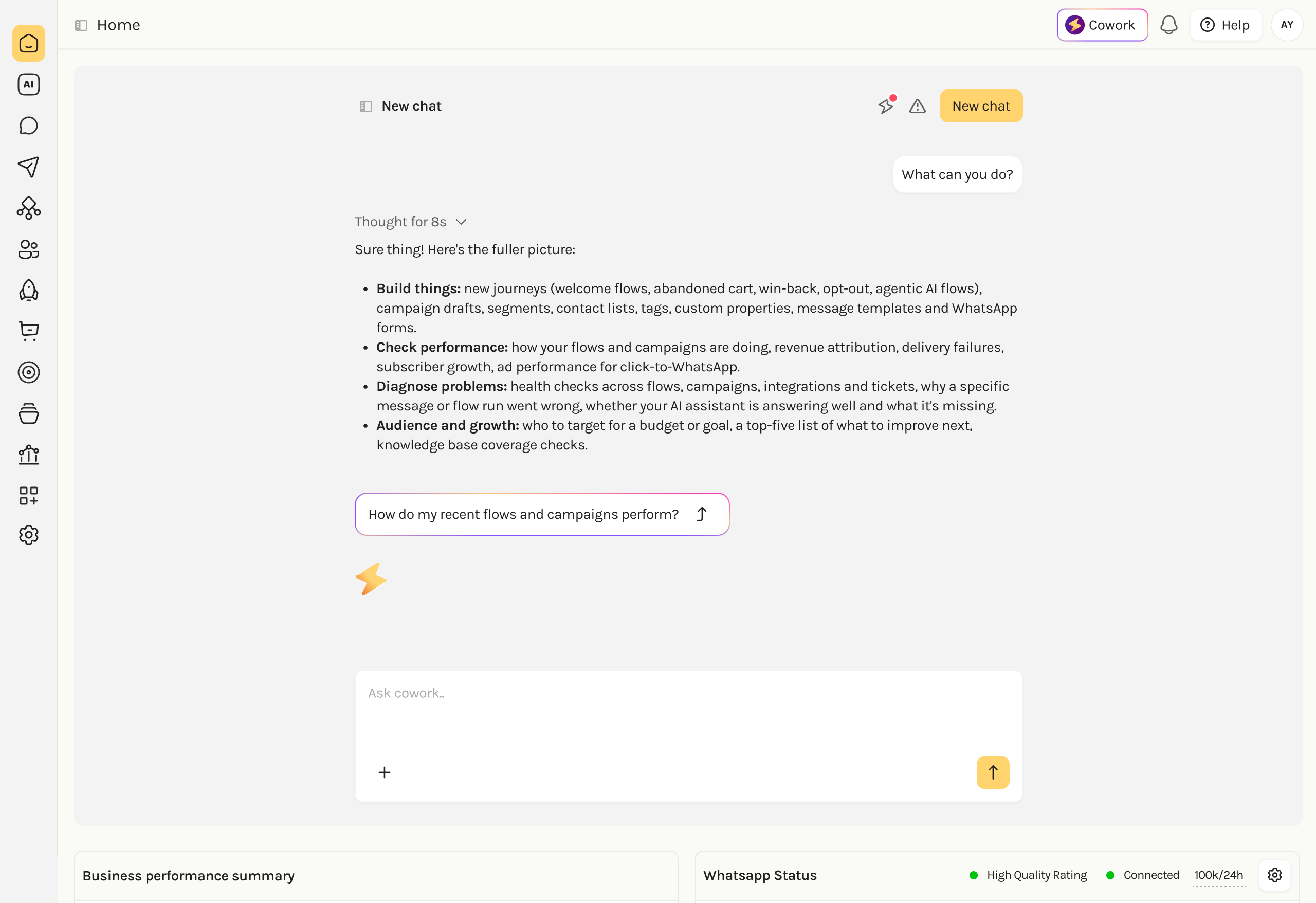
Describe when the flow should start and what you want it to do. For the abandoned-cart example, you could start with:
“Help me build an abandoned-cart flow. Wait two hours, then send a short WhatsApp reminder offering 20% off orders of €45 or more.”
The two-hour delay and offer match the example in the screenshots. For your own flow, choose the timing and any offer that fit your store.
Your brief may leave some details open: which shop event should trigger the flow, who should enter it, and which link should take the subscriber back to their cart.
cowork asks for the information it needs to build the flow. You can also ask for help with decisions:
“What should I consider when choosing the delay before the reminder?”
cowork uses your account context and charles’ WhatsApp marketing knowledge to make suggestions. You can ask why it recommends an approach and adjust it to suit your brand.
Once the details are clear, cowork can create the flow for you to review in the builder. You can see its nodes and continue making changes through the chat.
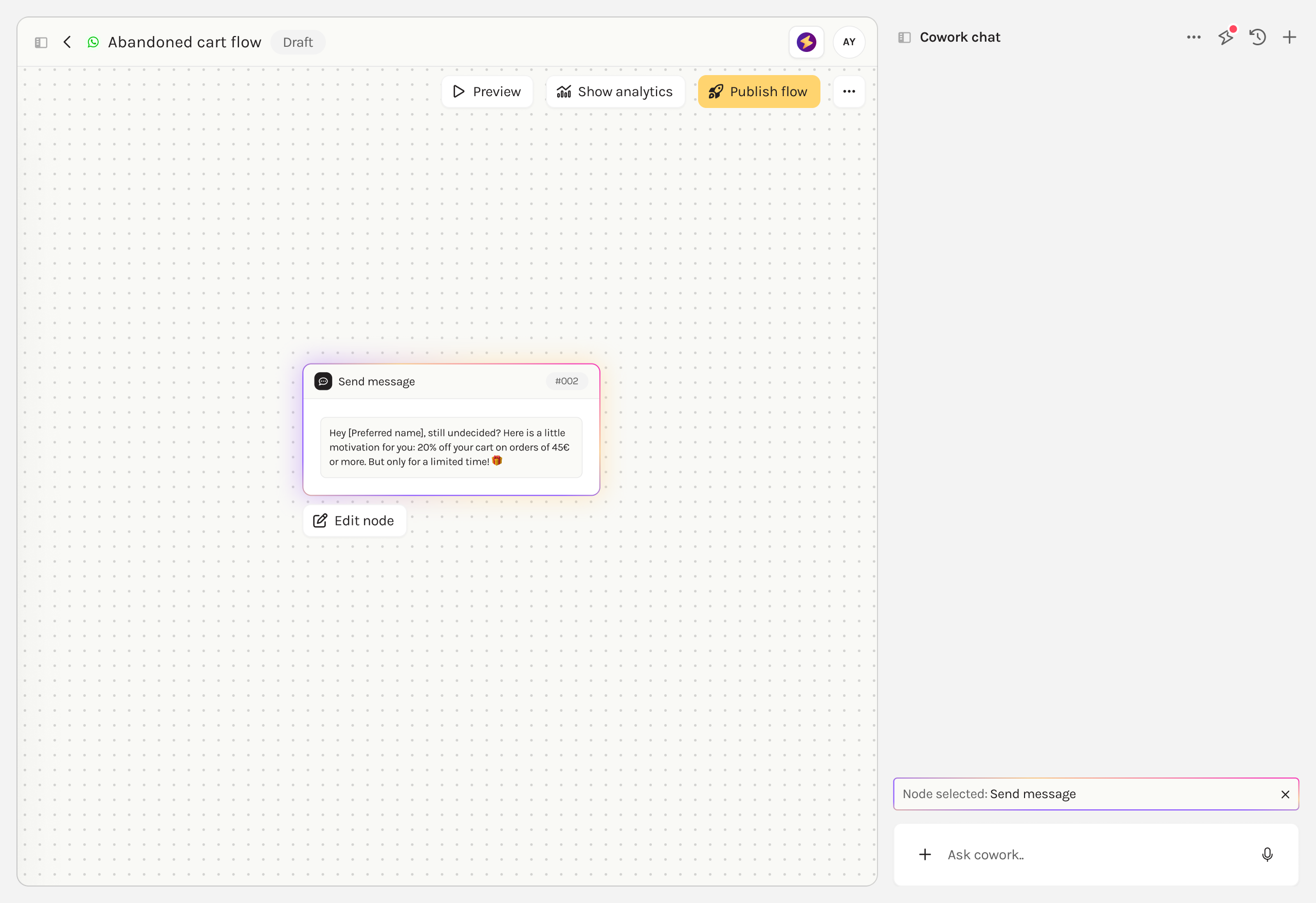
In the screenshot below, the message node is selected. You could ask:
“Put the reminder about their cart first, then mention the discount.”
“Use a warmer tone. That sounds too formal for us.”
Review the revised message in the node. You can also ask cowork to change another part of the flow, such as the delay before the message.
The flow shown below has three nodes: an abandoned-cart trigger, a two-hour delay and a message. The trigger starts the flow for a subscriber; the delay controls when the next step runs.
You can ask cowork to explain the setup:
“Walk me through what happens when a subscriber enters this flow.”
“What should I check before publishing?”
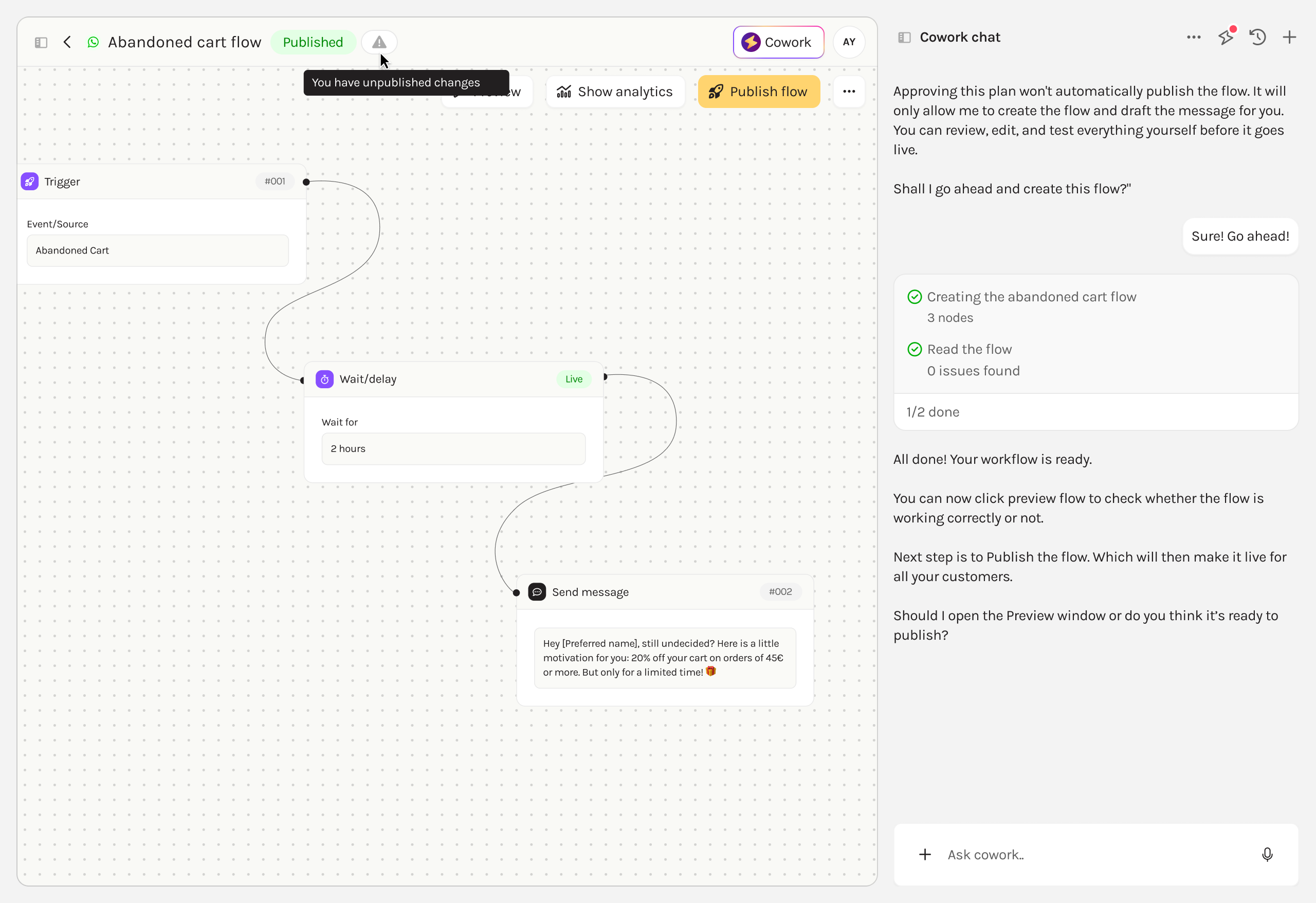
Check the trigger, entry rules, delay, message and links. For an abandoned-cart flow, also check that the subscriber has the right WhatsApp opt-in and that the reminder is skipped if they have already bought. The three-node screenshot does not show those checks.
Use the preview to test the flow and ask cowork to help with any changes. Approving a plan to build a flow is separate from publishing it. You decide when the flow or its changes are ready to go live.